AJKFiSimple, Light, Low cost & Reliable

AJKFi operator guide › AIRPHO

AIRPHO

AR-W410 · Breed rescue page, then AJKFi.

01Flash AJKFi

Breed rescue page, then AJKFi.

AR-W410AJKFi v3.82

AJKFi-AIRPHO_ar-w410_pisowifi-v3.84.1-sysupgrade.bin

The one file you flash. Size 13,501,577 bytes, check code (MD5) 23a16d9e0240557b33710fc497503e89.

Opens the Google Drive folder for this model only. Check the size and the check code above against the file you downloaded before you flash it.

Open download folderBuy on Shopee
  1. Open the Breed rescue page. Network cable from your PC to any LAN socket, internet line unplugged. With the router off, hold Reset, switch the power on, and keep holding about 5 seconds. Open http://192.168.1.1.
  2. Write AJKFi. Open Firmware update, tick Firmware, choose the AJKFi file and press start. Do not unplug anything while it writes. The router restarts by itself.
Tick Firmware only

Not Bootloader, not EEPROM, not full flash. Writing the bootloader by mistake is the one thing on this router that cannot be undone without opening the case.

First time with Breed? Ask us first

If your router has no Breed on it yet, send us the model and a photo of its label on Facebook. We will tell you what to do, or flash it for you. Do not install a bootloader you found yourself.

02Activate

  1. Plug in the internet. Put your internet cable into the router's WAN socket. The router needs to reach us once to collect its licence.
  2. Open the admin page. Connect to the Wi-Fi called AJK PISOWIFI, then open http://10.0.0.1:8080. Sign in with admin / admin.
  3. Activate. Open System. If you sent us your Account ID when you bought, press Check In Now and the licence arrives by itself. If you were given a licence code, type it in instead. The page shows Licensed when it is done.

No licence yet? Buy one online or message us.

03Set the admin password

  1. Change admin / admin. Go to Settings → Admin Account and set your own password. Anyone connected to your Wi-Fi can reach this login page, so do it before the machine goes out.
  2. Put the dashboard on your phone. Open http://10.0.0.1:8080 on your phone. Android (Chrome): menu ⋮ → Add to Home screen. iPhone (Safari): Share → Add to Home Screen. It gets the AJKFi icon and opens straight to the Dashboard.
  3. Open it from anywhere (Cloud Remote). Sign in at ajkfi.com, open My machines and press Remote - the dashboard opens already signed in, from anywhere with internet (AJKFi 3.55 or newer, Lite 1.4 or newer). Give the machine a name there with Rename. Remote can be switched off on the router under Network → Cloud Remote.

04Name your Wi-Fi

  1. Name your customer Wi-Fi. Network → Wireless. Rename AJK PISOWIFI to your shop name. Leave it open - customers pay at the portal, not with a password. Name it before you open: the name cannot be changed while a customer with running time is connected.
  2. Add a hidden Wi-Fi for the coin slot. On the same page, under Add Another SSID, add a second SSID on the 2.4 GHz radio, tick Hidden, and give it a password - required, the coin slot will not join a Wi-Fi without one. 2.4 GHz matters: the coin slot board cannot see 5 GHz.

05Connect the coin slot

Flashing the coin slot board
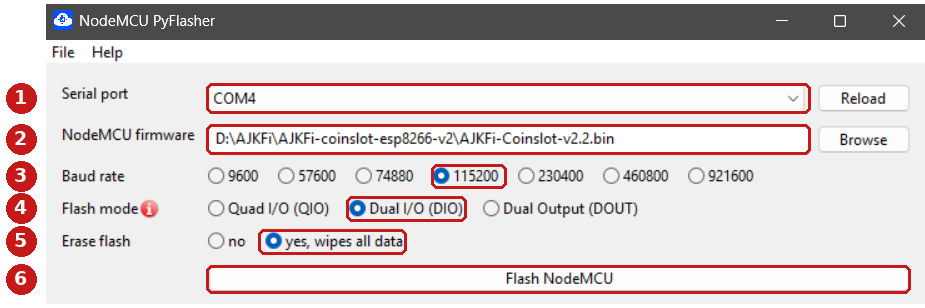
Serial port, firmware file, 115200, DIO, erase, then Flash.
  1. Flash the board. Easiest: open ajkfi.com/flash (the ESP8266 Online Flasher) in Chrome or Edge on a computer, plug the board in with a USB data cable and press Connect and flash - choose New board for a new one, Update for one already in service (it stays paired with the router). Or use PyFlasher or NodeMCU Flasher: 115200, DIO, erase yes on a new board, no when updating. From coin slot 2.5 on, later updates come from the router: Settings → Coinslot Hardware → Update coin slot.
  2. Pair it with the router. On the router tap Pair coin slot in Settings → Coinslot Hardware, then power the board. A coin slot 2.9 or newer finds the router by itself: within about a minute the router shows Paired - no phone, nothing to type. Then set the lock to Active HIGH in Settings → Coinslot Hardware → Coin acceptor wiring and tap Save to coin slot. Older board, or two machines pairing at the same time: join the board's own Wi-Fi AJKFi-Coinslot-Setup from a phone, pick the coin slot Wi-Fi, type its password, set the lock mode to Active HIGH and press Save & connect.
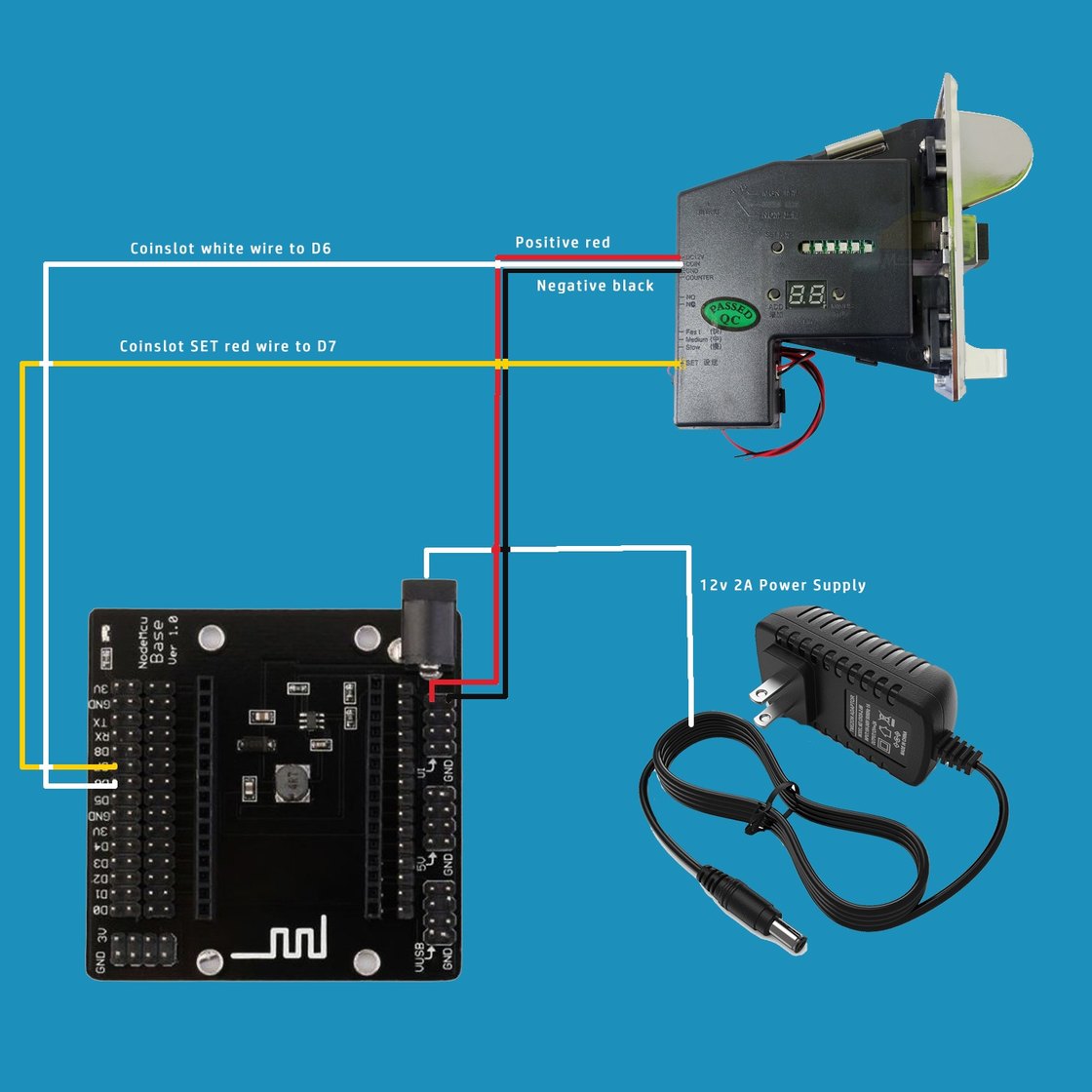
  3. Wire it. Three wires from the coin acceptor to the ESP8266 board: COIN to D6, SET (the lock wire) to D7, and GND to GND. The ground wire is not optional - without it the coin slot counts coins that were never inserted. The 12 V adapter runs the acceptor and the board together through the base board's DC socket.
    Coin slot wiring
    Red and black to the base board's DC socket with the 12 V adapter. White is COIN to D6. Yellow is SET, the lock wire, to D7. Ground must be shared.
  4. Test it and put it in the box. Insert a real coin through the portal and watch it appear. Then drop a coin without tapping INSERT COIN: it must come back out - if it is taken, switch the lock the other way in Settings → Coinslot Hardware → Coin acceptor wiring on the router and tap Save to coin slot (coin slot 2.4 + AJKFi 3.45 or newer; older boards: on the board's setup page, hold its FLASH button 3 seconds). If coins go in but no time is credited, try the coin signal (D6) setting there the other way. The wires do not change. Then mount everything in the box and test one more coin. Swapping in a new board later: tap Pair new coin slot in Settings → Coinslot Hardware first.

06If the router will not start

  1. Go back into Breed. Hold Reset, switch the power on, hold about 5 seconds, then open http://192.168.1.1.
  2. Flash again. Firmware update → Firmware, choose the AJKFi file again. Breed lives in a part of the router AJKFi never touches, so this always works.

Stuck? Message us on Facebook with the model and a photo of the label before trying anything else - a second wrong step is what turns a fixable router into a repair job.

Get help Printable version

07The other routers

Easiest to set up

COMFAST CF-WR631AX

CF-WR631AX V3 (AX3000 Wi-Fi 6)

One file, uploaded in the COMFAST settings page. No OpenWrt step, no extra tools - a PC and one network cable.

Recommended

ASUS

RT-AX52

Easiest: one installer file through ASUS Rescue Mode, and the router installs the newest AJKFi by itself (about 10 minutes). Or the 2-step way: an OpenWrt starter file, then AJKFi from the OpenWrt page. A Windows PC and one network cable - no SSH, no serial cable.

Recommended

EDUP RT2983

EP-RT2983 (AX1800 Wi-Fi 6)

One file, uploaded in the EDUP settings page. No extra tools - a PC and one network cable.

Recommended

Linksys

EA8300

Three stages: OpenWrt 22.03.6, one typed command, then AJKFi. A PC and an SSH window are needed.

AIRPHO

AR-W410

Breed rescue page, then AJKFi.

COMFAST

CF-EW72 V2 and CF-EW71 v2

CF-EW72 V2: U-Boot rescue page. CF-EW71 v2: the COMFAST settings page.

Ruijie

RG-EW1200G PRO v1.1 and RG-EW1300G v1

Easiest way: one installer file and about 10 minutes. Or the 2-step way: plain OpenWrt first, then AJKFi. All files are in your model's own Drive folder.

Newifi

Newifi D2

Breed rescue page, then AJKFi. One file.

Cudy

WR1300 V3

Cudy's own OpenWrt first, then AJKFi. Two files, both in the Cudy WR1300 V3 Drive folder.

Need help?
Tech support

We help with flashing, setup and common issues. If we helped you, a small tip is always appreciated.

Message tech support