Easiest to set up
COMFAST CF-WR631AX
CF-WR631AX V3 (AX3000 Wi-Fi 6)
One file, uploaded in the COMFAST settings page. No OpenWrt step, no extra tools - a PC and one network cable.
AJKFi operator guide
Flashing, the coin slot, your licence, every feature explained, and what to do when something goes wrong. Written for every router AJKFi runs on, with a step-by-step flashing page for each one.
One AJKFi machine is a router running AJKFi, a coin acceptor, and a small ESP8266 board that connects the two. You will need:
Each image carries that router's own radio drivers and flash layout. Putting one model's file on another gets you no Wi-Fi at best, and a router that needs recovery at worst. Check the label before you download.
Flashing is the only step that is different from router to router: each model has its own file and its own way in. Pick your router below for its own page - the file, the exact steps, which socket is the internet side, and how to rescue it. Everything after that is the same on every machine.
Flashing is the one step where a mistake can stop a router from starting. If anything on your screen looks different from the steps on your model's page, stop and message our Facebook page. We will walk you through it, or flash the router for you.
CF-WR631AX V3 (AX3000 Wi-Fi 6)
One file, uploaded in the COMFAST settings page. No OpenWrt step, no extra tools - a PC and one network cable.
RT-AX52
Easiest: one installer file through ASUS Rescue Mode, and the router installs the newest AJKFi by itself (about 10 minutes). Or the 2-step way: an OpenWrt starter file, then AJKFi from the OpenWrt page. A Windows PC and one network cable - no SSH, no serial cable.
EP-RT2983 (AX1800 Wi-Fi 6)
One file, uploaded in the EDUP settings page. No extra tools - a PC and one network cable.
EA8300
Three stages: OpenWrt 22.03.6, one typed command, then AJKFi. A PC and an SSH window are needed.
CF-EW72 V2 and CF-EW71 v2
CF-EW72 V2: U-Boot rescue page. CF-EW71 v2: the COMFAST settings page.
RG-EW1200G PRO v1.1 and RG-EW1300G v1
Easiest way: one installer file and about 10 minutes. Or the 2-step way: plain OpenWrt first, then AJKFi. All files are in your model's own Drive folder.
WR1300 V3
Cudy's own OpenWrt first, then AJKFi. Two files, both in the Cudy WR1300 V3 Drive folder.
Before flashing, check the downloaded file's size and MD5 against the card on your model's page. On Windows: certutil -hashfile "file name.bin" MD5. A different result means a broken download - download it again rather than flashing it.
After a flash, give it 2-3 minutes. The first boot builds the Wi-Fi setup, turns on every radio, and may restart once more by itself. That second restart is normal.
AJK PISOWIFI, open, no password. A cable in a LAN port works too.http://10.0.0.1:8080 (note the :8080). User admin, password admin.http://10.0.0.1:8080 on your phone. Android (Chrome): menu ⋮ → Add to Home screen. iPhone (Safari): Share → Add to Home Screen. It gets the AJKFi icon and opens straight to the Dashboard.| What | Address | Notes |
|---|---|---|
| Customer portal | http://10.0.0.1 | Every unpaid device lands here by itself. |
| Admin dashboard | http://10.0.0.1:8080 | Starts as admin / admin - change it. |
| Hotspot network | 10.0.0.1/22 | Customers get 10.0.0.2 - 10.0.3.254. |
While the internet is down the portal will not take coins. That is on purpose: nobody pays for a connection that is not there.
The order builders use: flash the board, pair it with the router, wire it, then put it in the box. The ESP8266 board keeps the coin acceptor locked until the router asks it to open for a customer who tapped INSERT COIN. Each coin slot makes its own secret token the first time it starts and hands it to its router by itself when it joins - nobody sees or types it. From then on the router only accepts coins from that board: a copied or fake board cannot fake coins on your machine.
Flash the board straight from your browser - no tool, no settings: open ESP8266 Online Flasher in Chrome or Edge on a computer, plug the board in and press Connect and flash. Or use a flashing tool as below.
Opens our Google Drive folder. Download the file with the highest version number.
Plug the board into the PC with a USB data cable - a charge-only cable will not work. Open the flashing tool (the one most builders have, named NodeMCU PyFlasher or NodeMCU Flasher) and set it up like this:
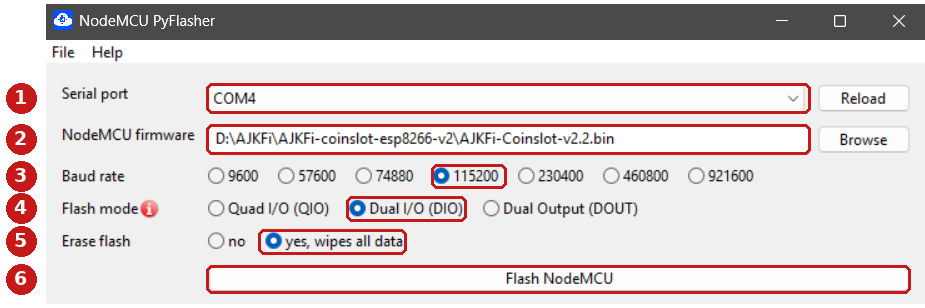
| Setting | What to choose |
|---|---|
| 1 Serial port | The COM port that appears when you plug the board in. Press Reload if the list is empty. If several show up, unplug the board, see which one disappears, and use that. |
| 2 Firmware | Press Browse and choose the AJKFi coin slot file you downloaded. |
| 3 Baud rate | 115200. |
| 4 Flash mode | Dual I/O (DIO). This is the one that catches people out. |
| 5 Erase flash | yes for a new board. Choose no when you are only updating a board already on a machine - it keeps its settings and stays paired with the router. |
| 6 Flash | Press the button and let it finish by itself. Do not unplug it while it writes. |
If flash mode is left on QIO the board looks dead or keeps restarting after flashing. Flash it again with DIO and it comes back - nothing is damaged.
Erase wipes the board's settings and gives it a new token, so the router sees a new board. Before setting it up again, tap Settings → Coinslot Hardware → Pair new coin slot on the router. Updating with erase set to no keeps everything and the router needs no change.
The same settings live in two tabs: Config - your file in the first row with 0x00000 beside it, ticked; Advanced - Baudrate 115200, Flash size 4 MByte, Flash speed 40 MHz, SPI mode DIO. Then Operation - pick the COM port and press Flash.
Made for you when you tap Pair coin slot (next step): AJKFi-Coinslot- + the last 4 of the Machine ID, 2.4 GHz, hidden, with its own password - a different name on every machine, so a board never joins the machine next door. A router that already has its own hidden coin slot SSID keeps it and uses that one.
AJKFi-Pair- + the last 4 of its Machine ID.1.COINSLOT, so it never needs to pay or gets paused.All four wires from the acceptor go to the base board - the expansion board with the DC socket that the ESP8266 module plugs into. Nothing is soldered to the module itself.
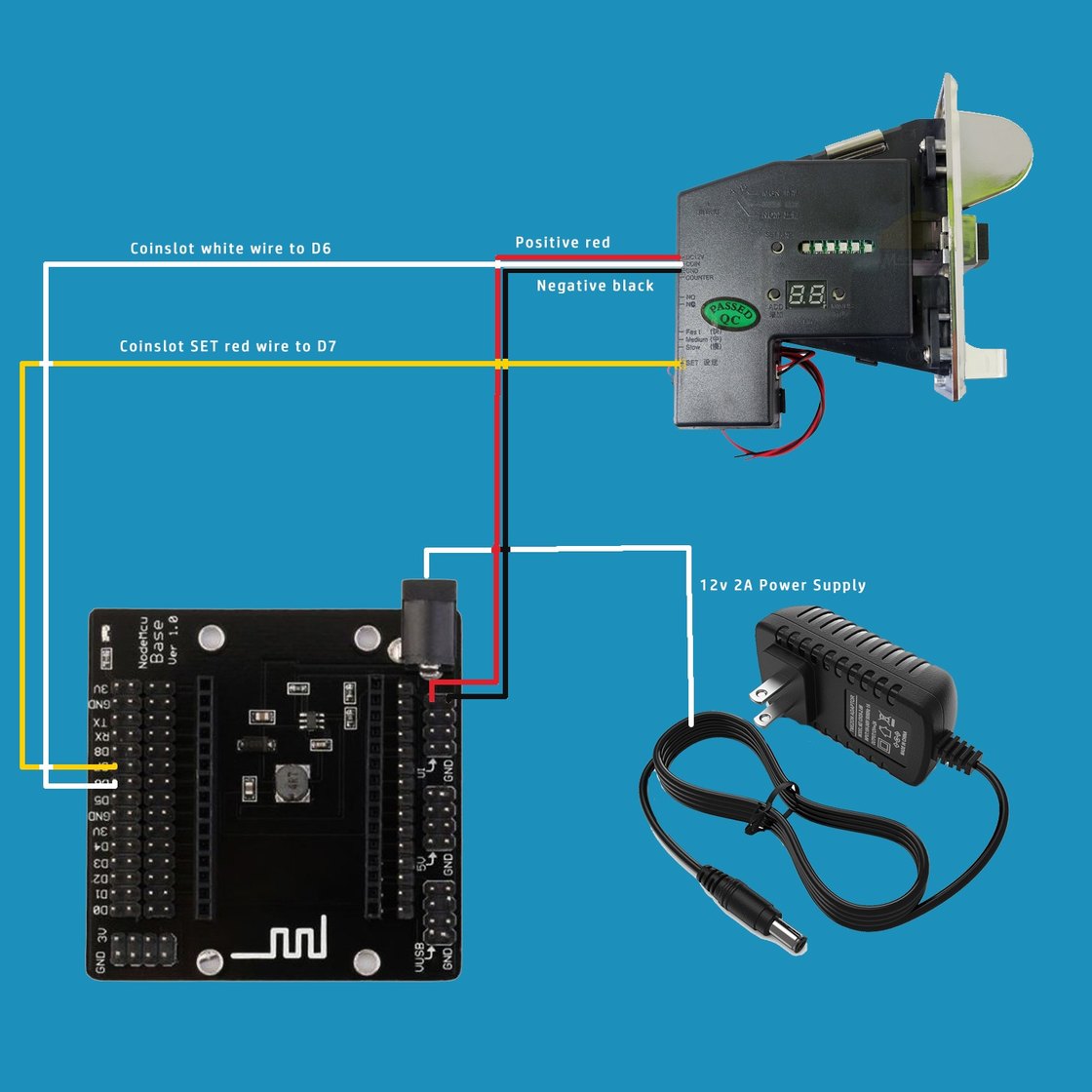
| Wire from the acceptor | Where it goes on the base board | |
|---|---|---|
| Red - 12 V + | → | the DC socket, + side |
| Black - 12 V − | → | the same DC socket, − side |
| White - COIN pulse | → | D6 on the header |
| SET - the lock wire | → | D7 on the header |
One 12 V adapter runs the whole slot. Its plug goes into the base board's DC socket, and the acceptor's red and black go to that same socket. The base board makes the lower voltage the ESP8266 needs, and because everything hangs off one adapter the grounds are shared already. Use an adapter of 2 A or more, and set the acceptor to one pulse per peso.
Those pins are for small parts, not a coin acceptor. The only 12 V point is the DC socket.
Then run a wire between the two grounds. Without it the board sees no coin pulses at all.
Instead of the SET (lock) wire, a small 5 V relay module can switch the acceptor's 12 V on and off. The acceptor then has no power at all while nobody is buying: it cannot be fooled with a string or a fake coin, it does not stay warm all day, and it also works with acceptors whose SET wire does not lock properly. Same board, same D6 and D7, no new firmware.
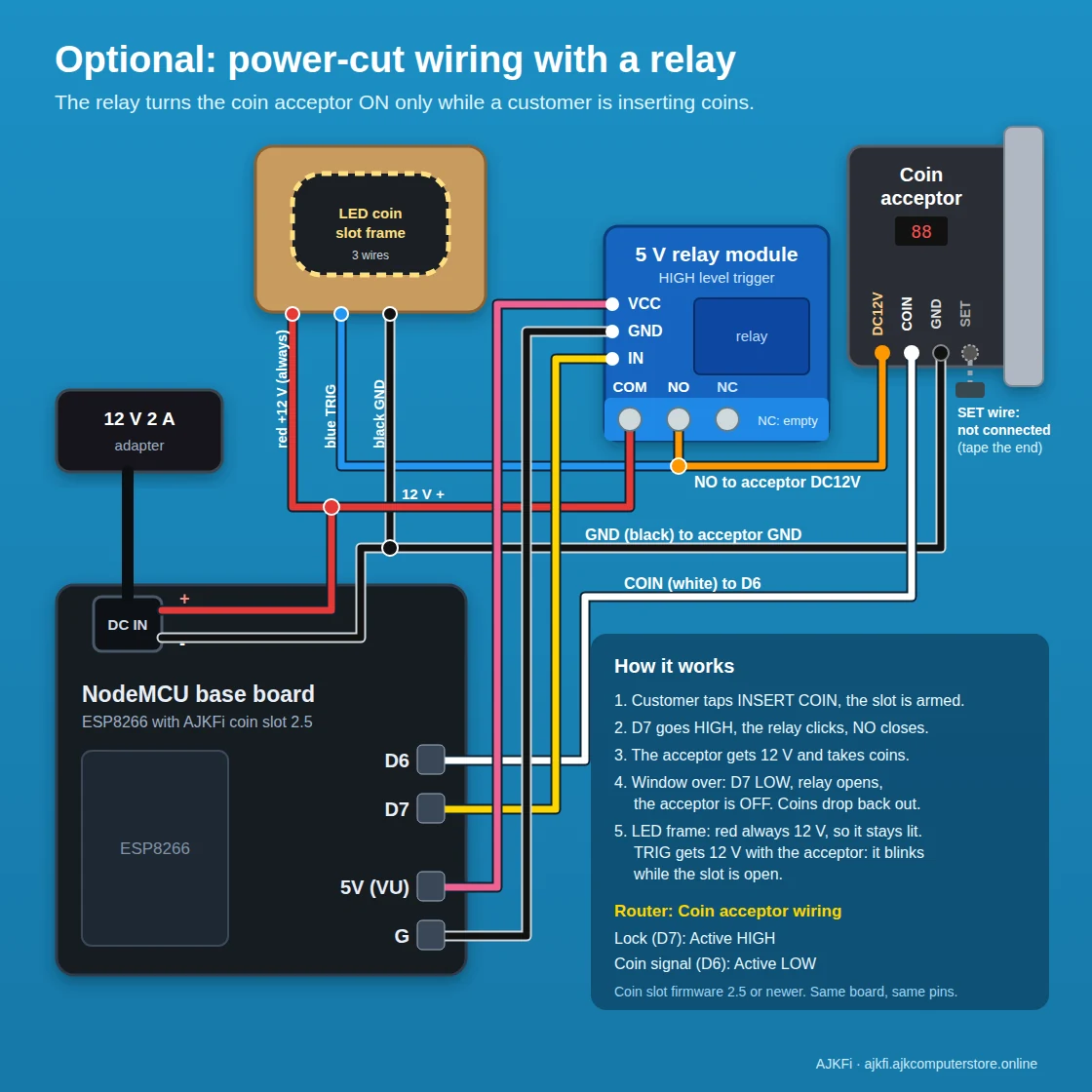
| From | To | |
|---|---|---|
| DC socket + (12 V) | → | relay COM |
| relay NO | → | acceptor red (DC12V) |
| acceptor black (GND) | → | DC socket − |
| acceptor white (COIN) | → | D6 |
D7 | → | relay IN |
5V (VU) and G on the base board | → | relay VCC and GND |
| acceptor SET | not connected | |
| LED coin frame (optional, 3 wires) | ||
| frame red (+12 V) | → | DC socket + (always on, same as relay COM) |
| frame blue (TRIG) | → | relay NO (together with the acceptor red) |
| frame black (GND) | → | DC socket − |
On the router, Settings → Coinslot Hardware → Coin acceptor wiring: Lock (D7) Active HIGH, Coin signal (D6) Active LOW. Tap Save to coin slot.
Get a 5 V, 1-channel module marked High level trigger, or one with an H/L jumper set to H. A low level trigger module keeps the acceptor on when the slot is locked. Use NO, never NC: with NC the acceptor would be on whenever the coin slot is off.
The frame's red wire stays on 12 V so it is always lit. Its trigger wire gets 12 V from the relay together with the acceptor, so it blinks only while the customer can drop coins: a clear "insert now" sign. Frames differ: if yours stays dark or blinks all the time, check its wire colours with the seller. The trigger draws very little, the relay handles it easily.
With the acceptor off, it needs about a second to wake up after the relay clicks, so the very first coin can drop back out: just drop it again. Then check two things: (1) tap INSERT COIN ten times and let it run out without a coin: no credit may ever appear. (2) Drop a coin without tapping INSERT COIN: the acceptor stays dark and the coin comes back. If a peso appears by itself on (1), your acceptor sends a pulse when it powers up: go back to the normal SET wiring and message us.
For a board older than 2.9, or when two machines are pairing at the same time (the board never guesses which one): join the board's own Wi-Fi AJKFi-Coinslot-Setup from a phone - the setup page opens by itself (or open http://192.168.4.1). Pick the coin slot Wi-Fi (a hidden one: Other (hidden Wi-Fi), then type its name), type its password, Lock wiring Active HIGH, and press Save & connect - the page shows Paired with the router. The password of a coin slot SSID the router made is not shown anywhere: give it one you know first in Network → SSIDs In Use → Edit.
The router only accepts the board it paired with. To replace it: tap Pair new coin slot in Settings → Coinslot Hardware, then power the new board within 10 minutes. The old board stops working as soon as the new one pairs.
The setup page only opens on the board's own Wi-Fi, never on the customer Wi-Fi. Hold the FLASH button on the ESP8266 for 3 seconds - the light blinks fast - then join AJKFi-Coinslot-Setup.
Acceptors differ: some want the lock (SET) line the other way round, some send the coin pulse the other way. The wires and pins never change - only this setting. With coin slot firmware 2.4 and AJKFi 3.45 or newer, open Settings → Coinslot Hardware → Coin acceptor wiring on the router:
Tap Save to coin slot; it applies at once. If coins get in while the slot is locked, or the coin line rests the wrong way, a yellow note there says so and offers a one-tap fix. It cannot be changed while a customer is inserting coins. A board older than 2.4 is changed on its setup page instead (hold FLASH 3 seconds).
Once a board has firmware 2.5, you never need the USB cable again: Settings → Coinslot Hardware → Check for update, then Update coin slot. The router downloads the new firmware, checks it, and the coin slot installs it and restarts by itself in about 30 seconds - still paired, settings kept. It is refused while a customer is inserting coins. A board older than 2.5 needs one last flash with the ESP8266 Online Flasher (choose Update).
The coin wire can move to D1, D2 or D5 and the lock wire to D1, D2, D5 or D0. Move the wire first, then set Coin signal pin / Lock pin in Settings → Coinslot Hardware → Coin acceptor wiring and tap Save to coin slot. Never use D3, D4 or D8 - the board would not start.
Update it in System → Software Update - it then pairs by itself. Until then: on the setup page open "Router older than AJKFi 3.43?" → Show this board's token, and put it with the board's address (Diagnostics → DHCP leases, ajkfi-coinslot) into Settings → Coinslot Hardware.
Every AJKFi router needs its own licence. Without one it shows only the activation page and its portal sells nothing. There is no free trial.
One-time payment, one router, for as long as that router lives. No subscription, nothing to renew.
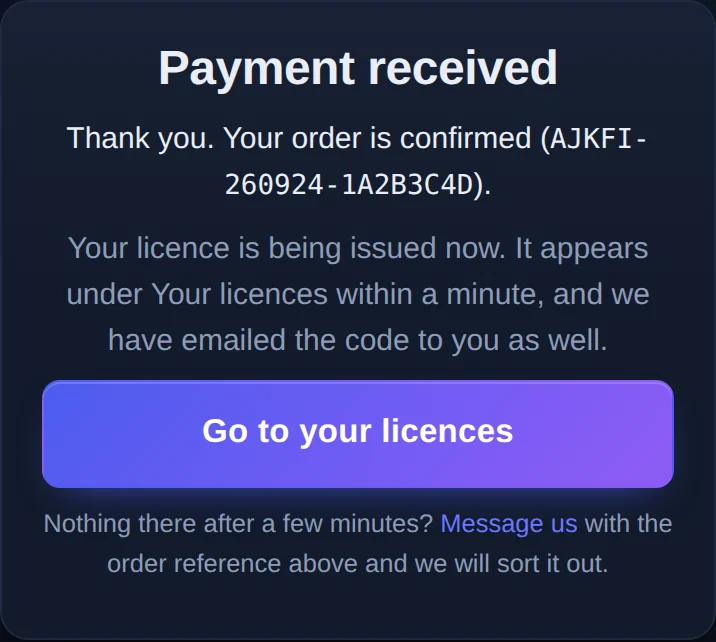
Pay with GCash, Maya or any bank app that supports QRPh. The licence goes straight into your AJKFi account - no waiting for us, no code to copy.
AJKFI-).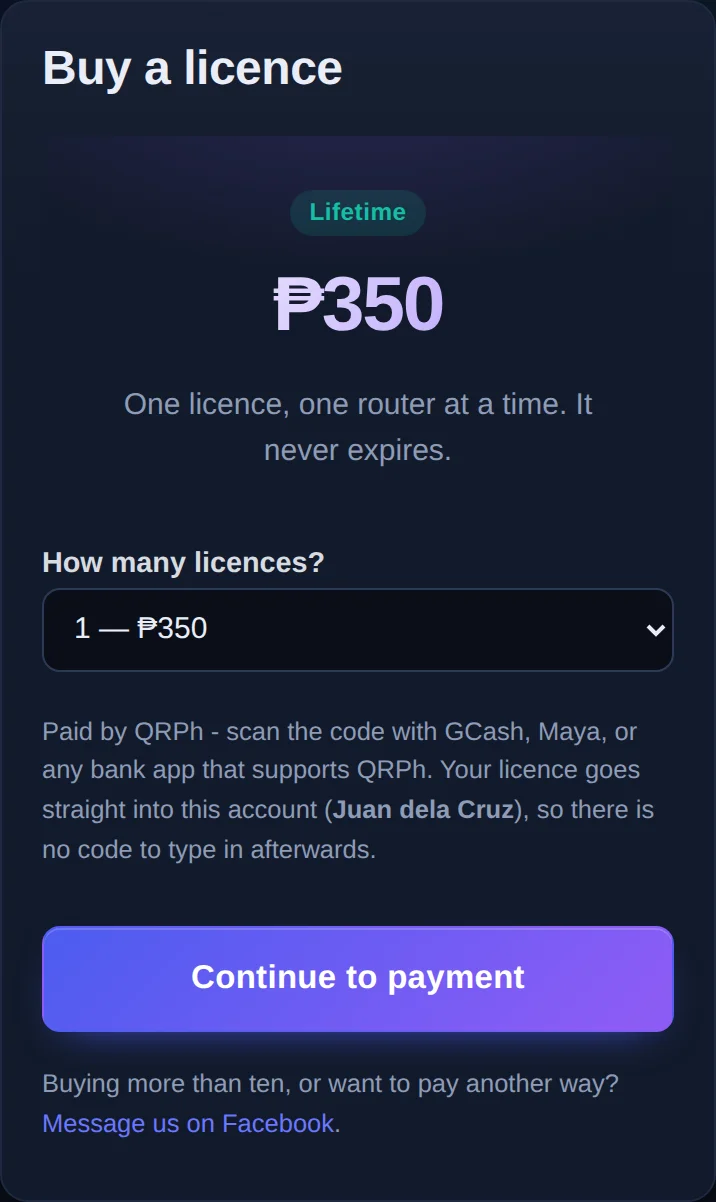
A phone on an AJKFi or any PisoWiFi hotspot cannot open this site until it has paid time on that Wi-Fi. Use mobile data, or insert a coin first.
Close it or press back. Nothing is charged, and you can start again from Buy a licence at any time.
Message our Facebook page with your order reference (AJKFI-...) or a screenshot of the payment receipt from your app. We will sort it out.
K7MP-3QTR-9XYZ-4BCD, with a Copy button.ABCD-EFGH-JKLM - keep it private, it is the licence. Add it under Your licences, or type it straight into the router.One licence runs one router at a time. Using one code on several routers is not allowed and gets the licence withdrawn.
The router must be online (Network → Internet Connection) while it activates. Sign in to http://10.0.0.1:8080; the activation page shows the router's Machine ID - 12 characters, 0-9 and A-F, unique to that router.
Nothing is typed on the router, and the licence stays manageable from your phone.
What each feature does and where to find it in the router admin.
Sign in on this website, open My machines and press Remote: the router dashboard opens in a new tab, already signed in, from anywhere with internet. No ZeroTier, no port forwarding. Needs AJKFi 3.55 or newer (AJKFi Lite 1.4 or newer) and internet on the router. A small round Wi-Fi button sits on the page - drag it out of the way, tap it to see the machine name and End. If you change the internet (WAN) settings over Remote and the router cannot get back online, it puts the old settings back by itself within 3 minutes. Only the account that holds the licence can open it; you can switch Remote off on the router.
Website → My machines; router: Network → Cloud Remote
Tap the sun button (top of the screen on a phone, next to your name on a computer) to switch the dashboard to a bright "Cool gray" look; the moon switches back. Each phone or computer remembers its own choice. Dark stays the default. (Full AJKFi 3.56 or newer.)
Top bar / menu
Customer taps INSERT COIN and drops coins one by one; the running total shows on screen and the slot stays open while coins keep coming. DONE - GO ONLINE credits the total at the best rate for that total: two ₱5 coins buy the ₱10 rate. If they walk away without tapping DONE, the coins are credited anyway. Customers already online can top up.
Rates
The acceptor is locked until a customer asks to pay. Bursts of pulses (wire and flick tricks) ban that device for a while; coins count only after the pulses settle; and pulses while locked show up as a tamper count - a cut or faulty inhibit wire.
Settings → Coin-Insert Security
Every coin slot makes its own secret token on first start and pairs itself with its router - nobody types or sees it. From coin slot 2.9: one tap on Pair coin slot and the board joins its router by itself. The router only takes coins from its own board, and shows it online or offline live. When the board is unreachable, customers see "the coin slot is offline" instead of an error.
Settings → Coinslot Hardware
A paying customer who turns on their phone hotspot keeps their own connection; the friends riding on it are blocked. Also built in: DNS-tunnel limits, voucher-guessing lockout and cloned-address reports.
Settings → Tethering & Connection Sharing
Customers keep their time moving between your SSIDs and access points, and coming back to one they used before, with nothing to tap. Phones that change their address can get their time back with RESTORE MY TIME.
Automatic
Customers can pause to bank their time and resume later. After a pause the portal pops up again by itself, so resuming is one tap. Auto-pause (off by default) banks the time of a device that leaves, only after 2 missed checks and never everyone at once.
Settings → Auto-Pause on Disconnect
Free, permanent access for cameras, smart TVs, a POS or the owner's phone, with a label. Whitelisted devices are never paused, timed out or blocked.
Hotspot
Every device by name and IP (the MAC only when you ask). Filter by status, time or speed, or search. Each row has Time, Speed and Actions menus; tick several devices to add time, change speed, whitelist, block or delete them in one go.
Hotspot
Sell time without coins - for regulars, or to make good on a complaint. Pick a coin rate, or set your own price, time and expiry (e.g. ₱25 = 1 day). A voucher counts as a sale when it is used, so the Dashboard shows Coins + Vouchers. The voucher list can be filtered (All, Unused, Used) and searched; tick unused vouchers to edit or delete them.
Rates → Vouchers
Off by default. Turn it on and every rate has an expiry, e.g. ₱5 = 2 hours, expires after 6 hours, set in a table: Rate, Time, Expires after. An expiry cannot be shorter than its time. The expiry does not stop, not even when paused, and buying more adds to it. Vouchers keep their own expiry; old vouchers get the one that matches their time.
Rates → Expiry
Design your own portal page: write the HTML and CSS, or start from the ready starter page. Add a banner photo, your own Insert Coin sound (it loops while the coin slot is open) and coin drop sound. Preview it first, then turn it ON; turn it OFF any time to go back to the built-in themes. It changes the look only - time, coins, vouchers and pause work exactly the same. Size limits keep the router storage safe. Full AJKFi only, not Lite.
Settings → Portal Appearance → Custom Portal
Pick an amount of free time and a Start and End. During that window the portal shows a bright CLAIM FREE ribbon; one tap and the customer is online. One claim per phone per promo, it adds on top of time they already have, and it is never counted as sales. At the End the ribbon simply goes away.
Rates → Free Time
A default cap for everyone, a cap per rate that overrides it, and a cap per device from the Hotspot page that overrides both.
Settings → Bandwidth Limiting
Checks the internet every minute. No coins are accepted while it is down, and it can restart the router after an outage longer than the minutes you set.
Settings → Internet Monitoring
Sales and customer time survive a sudden power cut. A clock guard stops the time jumping on boards with no clock battery, paying customers get their access back as soon as power returns, and a Wi-Fi watchdog brings dark radios back after a cold boot.
Automatic
Manage the machine from anywhere over ZeroTier - no public IP, no port forwarding. It stays joined after a power cut, and if it stays offline for 10 minutes while the internet works, the router restarts it by itself. The page shows Online/Offline and the last automatic restart.
Network → ZeroTier Remote Access
Off unless you turn it on. Restarts the router at the time and on the days you pick - never while coins are going in, never twice in one day, and it can wait (up to an hour) for customers to finish. Paid time keeps counting.
System → Router → Scheduled restart
New versions install from the admin in one tap, with a rollback button. Sales data is never touched.
System → Software Update
A bar graph of your sales on the Dashboard: last 30 days, 12 weeks, 12 months or every year, with the total, the average and the best day. Tap a bar to see its amount. It reads the sales records the router already keeps, so it costs no extra storage.
Dashboard → Sales History
Today's sales in Philippine time, recent transactions and system health on the Dashboard. Diagnostics shows DHCP leases, Wi-Fi and ping without needing SSH.
Dashboard, System, Diagnostics
System → Software Update → check, then install. Minutes, no cable, nothing lost. If a release misbehaves, Rollback on the same page returns to the version that was flashed.
For a new router, a router that cannot reach the admin, or when told a release needs a flash. Use your model's page under Flash your router and always the latest firmware. Settings and sales are kept; the newest flashed version wins over older OTA files.
1. Press Ctrl + Shift + R on a computer (or clear the browser cache on a phone) - the browser may be showing the old pages it saved.
2. Still old? The router was updated online before, and flashing through Breed does not clear those saved update files, so they hide the new firmware. Do System → Factory reset once, then activate again. (Flashing from OpenWrt with Keep settings unticked clears them by itself.)
System → Factory reset wipes settings, sales and the licence on the router. The licence can be brought back with the same code, but your figures cannot. Use it only when support asks you to.
AJKFi-Coinslot-Setup). Above zero means coins went in while the slot was locked - the wiring is loose or someone is working the acceptor.Do not try to install a bootloader yourself - a wrong bootloader write can leave the router unable to start, and fixing that needs a hardware programmer. Message our Facebook page with the router model and a photo of its label. We will tell you if it can run AJKFi and help you flash it, or flash it for you.
Wait 3 minutes - the first boot can restart once by itself. Still nothing: unplug the power for a minute and plug it back in. If it never appears, check the firmware MD5 and flash again through Breed.
Use http://10.0.0.1:8080 with the :8080, while connected to the router's Wi-Fi or a LAN port. http://10.0.0.1 without the port is the customer portal.
It has no active licence yet. Set up the internet in Network, then activate by code or through your account (see Activate the router).
Check the code for typing mistakes (0 and O, 1 and I). The router must be online. If the code is on another router, free it from your account first.
Make sure the router has internet and firmware 3.38 or newer, then press Check In Now on its activation page. Check the Machine ID you typed matches the router exactly.
Is the ESP8266 board powered? Is it on the hidden SSID (Diagnostics → DHCP leases shows ajkfi-coinslot)? Does Settings → Coinslot Hardware say Paired? After a power cut it reconnects on its own within a minute or two.
The router is paired with a different board. On the router tap Settings → Coinslot Hardware → Pair new coin slot; the board pairs within 30 seconds.
The lock setting is wrong for your acceptor, or the SET wire is not connected. On the router open Settings → Coinslot Hardware → Coin acceptor wiring and switch the Lock the other way, then Save to coin slot (coin slot 2.4 or newer). Older boards: use the Test button on the coin slot setup page (hold FLASH 3 seconds to open it).
Is the acceptor’s black wire on the same DC socket as the adapter? Is the white wire on D6? Check and Pulses per ₱1 matches the acceptor setting. Watch the live pulse count on the coin slot setup page while dropping a coin. If the router shows a yellow note under Coin acceptor wiring, the coin signal (D6) setting is the wrong way - tap its fix.
Check the WAN light and Network → Internet Connection. For PPPoE, see the "If PPPoE will not connect" list on that page. Internet Monitoring on the Settings page can restart the router after long outages.
Ask them to open the portal and tap RESTORE MY TIME. If they paused, RESUME TIME. If money is involved and it still fails, report it with the time and amount.
Message us on Facebook with the router's Machine ID - do not factory reset a machine with sales you still need.
A machine shows there once it runs one of the licences in your account and has checked in. Add the licence to your account (Licences → Add a licence), make sure the router has internet, then press Check In Now on the router (System → Licence).
Greyed out: the machine runs firmware older than AJKFi 3.55 (Lite 1.4) - update it (System → OTA Update) or flash the newest Lite. Offline: the router has no power or no internet, or Remote is switched off on the router (Network → Cloud Remote). After a restart it reconnects within a few minutes.
Each Remote link works once, for 2 minutes. Go back to My machines and press Remote again.
Send reports to our Facebook page. A report we can repeat gets fixed fastest: what you did, what you expected, and what happened instead.
MACHINE ID : (System > License)
FIRMWARE   : (System > Software Update)   COIN SLOT: (setup page)
WHEN       : 2026-09-15 14:20
HOW OFTEN  : every time / sometimes / once

WHAT I DID
  1.
  2.

WHAT I EXPECTED

WHAT HAPPENED INSTEAD

ATTACHED: screenshot / photo of the wiring (coin problems)
| How urgent | When |
|---|---|
| Now | Money is wrong, customers are charged for nothing, or the machine is dead. |
| Today | A feature does not work, but the machine still sells time. |
| Whenever | Wording, layout, ideas. Keep them coming. |
We will never ask for it. A Machine ID and screenshots are enough.
| Admin dashboard | http://10.0.0.1:8080 (admin / admin until changed) |
|---|---|
| Customer portal | http://10.0.0.1 |
| Hotspot range | 10.0.0.1/22 |
| Wi-Fi after a flash | AJK PISOWIFI (open, all radios) |
| Rescue page (models that have one) | http://192.168.1.1 (hold Reset while powering on) |
| Coin slot pairing | Pair coin slot on the router, then power the board (2.9+). Pair Wi-Fi: AJKFi-Pair-<last 4 of the Machine ID>, open 10 minutes |
| Coin slot setup network | AJKFi-Coinslot-Setup (page opens by itself, or http://192.168.4.1). Hold FLASH 3 s to bring it back |
| Coin slot hostname | ajkfi-coinslot |
| Coin slot wires | White COIN → D6, SET → D7 (base board header) |
| Coin slot power | One 12 V adapter (2 A+) into the base board DC socket; the acceptor’s red and black on the same socket |
| Lock setting (AJK acceptors) | Active HIGH |
| Flashing tool settings | 115200 · DIO · erase yes on a new board, no when updating |
| Arm window (default) | 20 seconds |
| Starting rates | ₱1 = 12 min, ₱5 = 2 h, ₱10 = 5 h, ₱20 = 12 h, ₱30 = 24 h |
| Unlicensed check-in | every 15 minutes |
| Open a machine from anywhere | ajkfi.com → sign in → My machines → Remote (AJKFi 3.55+ / Lite 1.4+) |
| Cloud Remote on/off (on the router) | Network → Cloud Remote |
| Support and bug reports | Facebook page |
We help with flashing, setup and common issues. If we helped you, a small tip is always appreciated.
Message tech support